
Tool Management System Guide
Overview
Tool Management lets an administrator control which AI tools the MCP server exposes, and to whom — without touching code. From the FAC Admin page you can:
- Enable or disable individual tools — hide a tool from
tools/listso no client can call it - Restrict a tool to specific roles — e.g. only let
Sales ManagerandSystem Manageruse a tool - Categorize tools — understand at a glance what each tool does (read-only, write, privileged)
- Bulk-toggle by category or plugin — disable every
privilegedtool in one click
This is the recommended way to run FAC with least-privilege access: keep the MCP integration user on a low-privilege role and open up exactly the tools they need, role by role.
Two layers of control
Tool Management sits on top of Plugin Management. A tool is only reachable if its plugin is enabled, then its tool toggle is on, then the role access check passes, and finally the user has the underlying Frappe DocType permission. All four must hold. See How access is decided.
The FAC Admin page
Everything below lives on one page: FAC Admin (/app/fac-admin), available to System Manager and Assistant Admin.
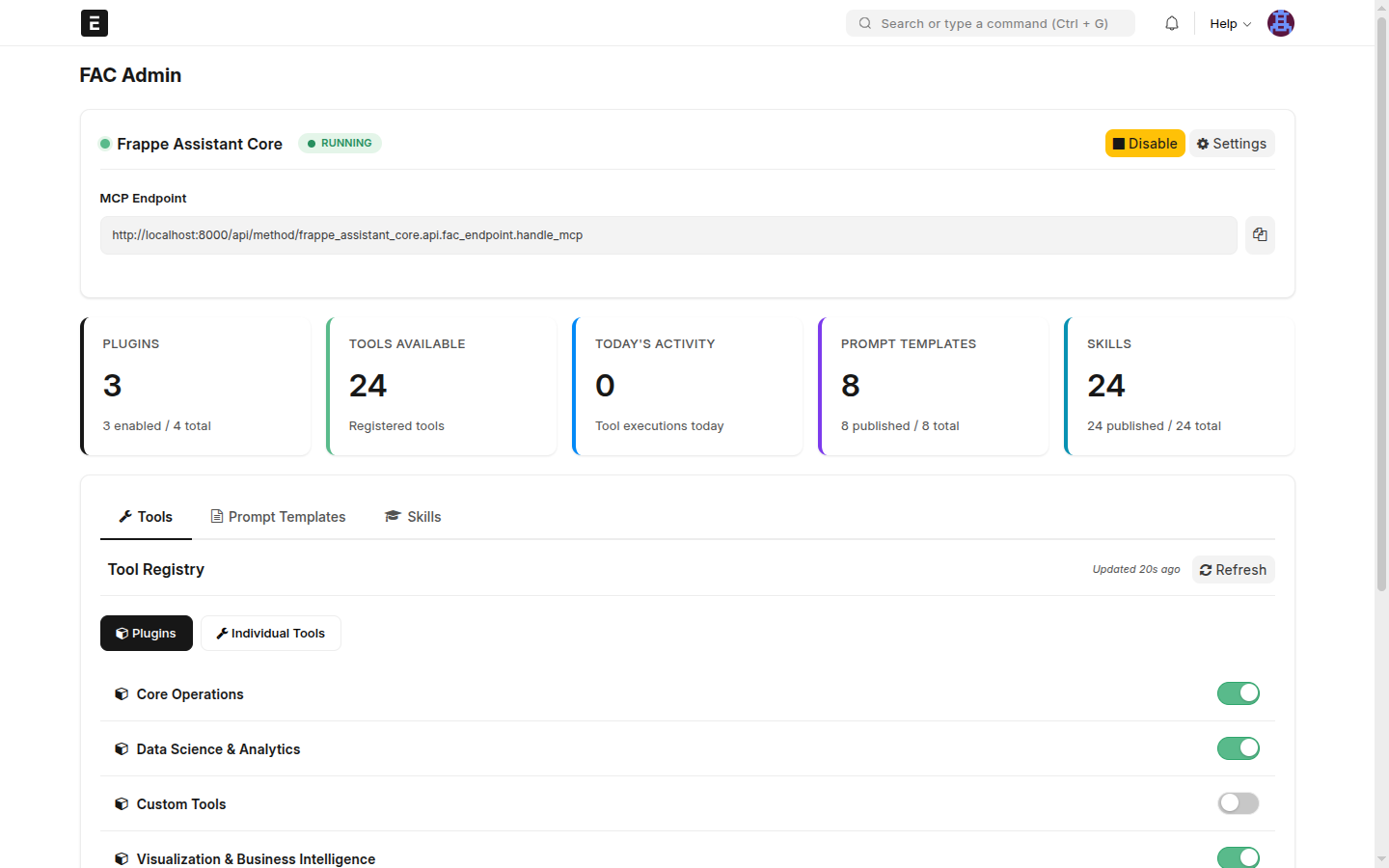
The page has:
- A status bar — the FAC server on/off toggle and your MCP endpoint URL (copy this into your MCP client).
- Stat cards — enabled plugins, registered tools, tool executions today, prompt templates, and skills.
- Three tabs — Tools, Prompt Templates, and Skills. Tool access is managed under Tools.
- A Recent Activity panel — the last few tool calls, with a link to the full Assistant Audit Log.
Two views: Plugins vs Individual Tools
The Tools tab has a view switch:
- Plugins (default) — a simple on/off switch per plugin. Turning a plugin off hides all of its tools at once.
- Individual Tools — the detailed view where per-tool enable/disable, categories, and role access live.
Switch to Individual Tools to configure access:
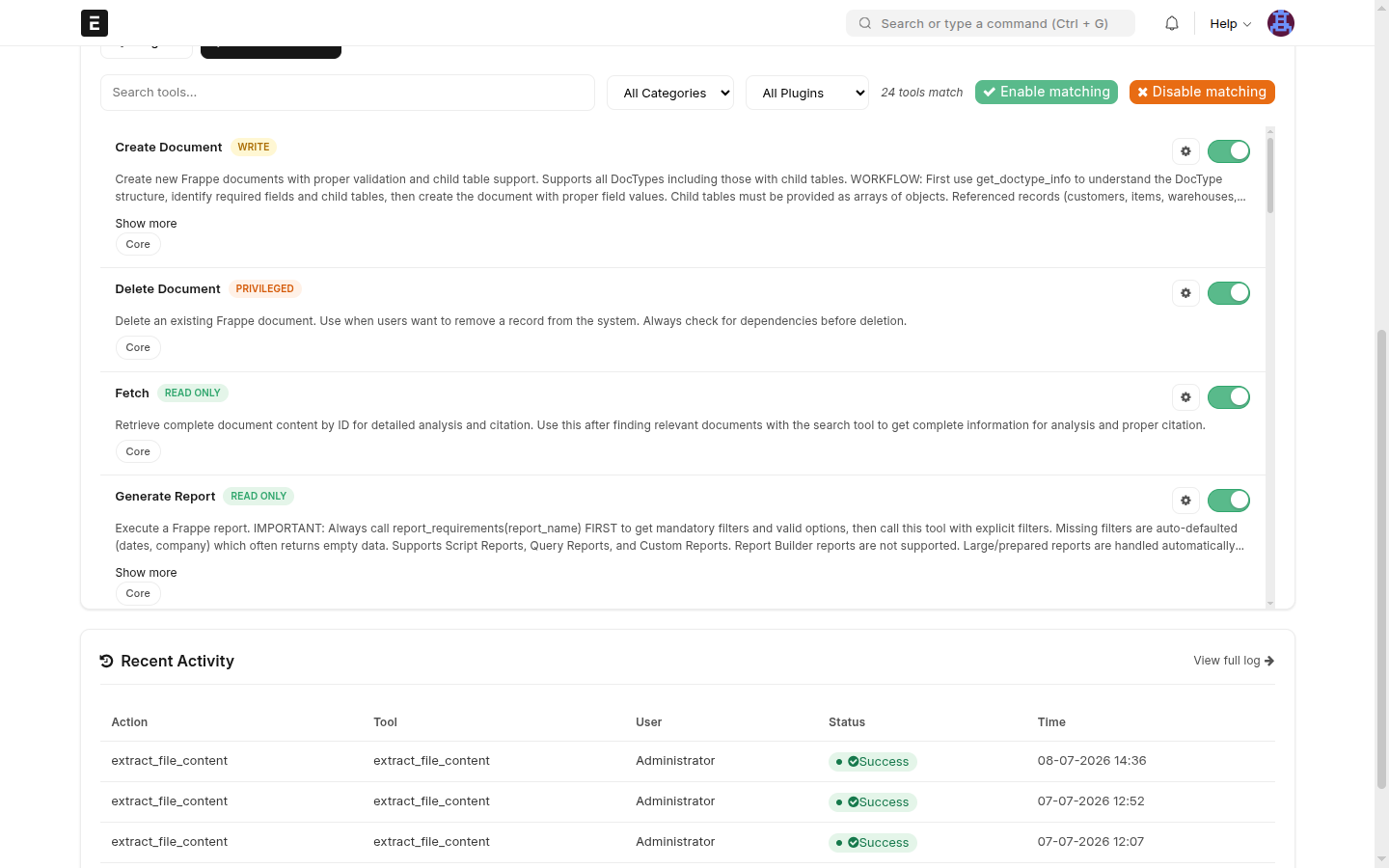
Each tool card shows its name, a category badge, its description, and its source plugin, with a ⚙️ settings button and an enable toggle on the right. The bar at the top gives you search, a category filter, a plugin filter, and Enable matching / Disable matching bulk buttons that act on whatever the filters currently match (the "N tools match" hint tells you the scope).
Restricting a tool to specific roles
This is the core answer to "can I give a tool to just one role?" — yes.
- Open FAC Admin → Tools → Individual Tools.
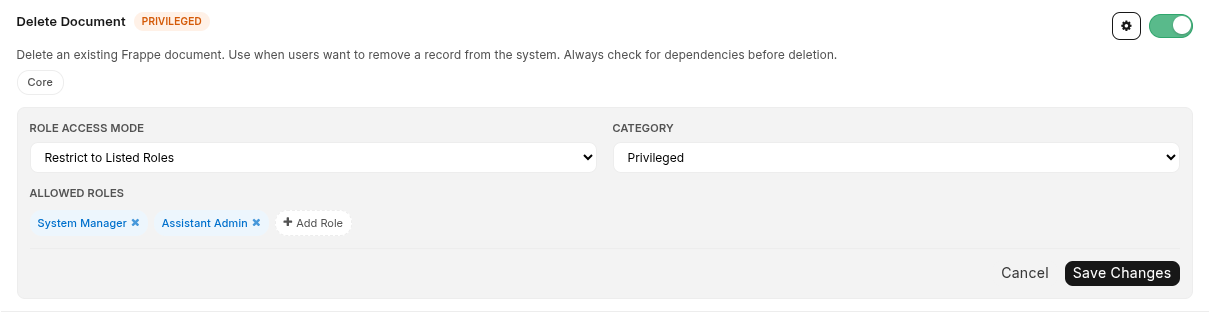
- Find the tool (use search) and click its ⚙️ button to open the config panel.
- Set Role Access Mode to Restrict to Listed Roles.
- Under Allowed Roles, click + Add Role and pick a role. Add as many as you need.
- Click Save Changes.
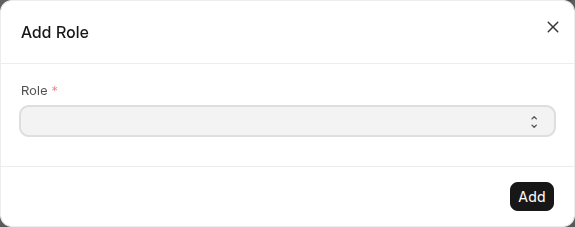
The Add Role picker lists every role on your site — not just FAC's own roles — so you can scope a tool to Accounts Manager, Sales User, Stock User, or any custom role you've defined:
Once at least one role is listed, only users holding one of those roles (plus System Manager, who is always allowed) will see or be able to call the tool. Everyone else gets it filtered out of tools/list entirely.
Allowing everyone again
Set Role Access Mode back to Allow All. The Allowed Roles list is hidden and every user can reach the tool — still subject to the tool's enable toggle, its plugin, and normal Frappe permissions.
"Restrict" tightens, it never loosens
Role restriction can only reduce who can use a tool. It cannot grant a user access they wouldn't otherwise have — the underlying Frappe DocType permission is still checked (see below), and a few tools have their own hardcoded role gates that role access cannot override.
Least-privilege setups (the "give the MCP user only read tools" pattern)
A common goal: an integration/MCP user that can read data through the assistant but never delete, run code, or run raw SQL.
The fastest way, entirely from the UI:
- In Individual Tools, set the Category filter to Privileged and click Disable matching. This turns off
delete_document,run_python_code,query_and_analyze, and any other privileged tool in one action. - Repeat for Write if you want a strictly read-only assistant.
- Optionally, for the tools you do keep, set Restrict to Listed Roles and list only the role your MCP user holds.
Because access is enforced at the MCP layer (tools/list and every execute), the disabled/restricted tools simply don't exist for that user — you don't need to hand them System Manager to make anything work.
What this does not solve: creating brand-new reports (Query/Script Reports) still requires Frappe's built-in
Script Managerrole, because that check lives in Frappe core'sReportvalidation, below FAC's tool layer. FAC can execute existing reports read-only (generate_report) at any permission level, but it has no "create a report" tool today. This is tracked in issue #216.
Tool categories
Every tool has a category that signals what it can do. Categories are auto-detected from the tool's code and can be overridden per tool in the config panel.
| Category | Badge | Meaning | Examples |
|---|---|---|---|
| Read Only | 🟢 green | Only reads data | document_get, document_list, search_global, generate_report |
| Write | 🟡 yellow | Creates or modifies data | document_create, document_update |
| Read & Write | 🔵 blue | Both reads and writes | mixed-operation tools |
| Privileged | 🟠 orange | Elevated: delete, execute code, raw SQL | delete_document, run_python_code, query_and_analyze |
You'll see these badges on every tool card and in the category filter. They're what the bulk-by-category actions operate on, so keeping them accurate is worthwhile.
Fixing an incorrect category
Open the tool's ⚙️ panel and change the Category dropdown, then Save Changes (this sets an override flag so future syncs won't revert it). The auto-detected value is remembered separately in the underlying record.
How access is decided
For a given user and tool, FAC checks, in order:
1. Plugin enabled?          (FAC Plugin Configuration)   — else hidden
2. Tool enabled?            (FAC Tool Configuration)      — else hidden
3. Role access passes?      (FAC Tool Configuration)      — else hidden
4. Frappe permission? (frappe.has_permission / tool's requires_permission)- If a plugin is disabled, all its tools disappear regardless of tool settings.
- If a tool is disabled, it's hidden even when its plugin is on.
- Role access (step 3) is the configurable layer this guide is about.
System Manageralways passes it. - Step 4 is standard Frappe security and is never bypassed by FAC — a user still needs real DocType permissions on the data the tool touches.
This ordering is enforced centrally in the tool registry, so it applies identically to tools/list (what the client sees) and to every tool execute (what actually runs).
Hardcoded role limits
This section answers a frequent question: "are some tools locked to a role in code, regardless of the Tools tab?"
Yes. A small number of tools carry their own role check in code, applied at step 4 above — after and independent of the configurable role access. The Tools tab can tighten these tools further, but it cannot loosen them: setting them to "Allow All" will not grant a non-privileged user access.
| Tool | Hardcoded requirement | Why |
|---|---|---|
query_and_analyze (run_database_query) | System Manager | Executes raw SQL (SELECT-only); high blast radius |
create_dashboard | System Manager | Creates system-level Dashboard objects |
extract_file_content | System Manager for private, unattached files only | Prevents reading arbitrary private files; attached files use normal File permissions |
Everything else uses the generic mechanism: a tool declares requires_permission as a DocType (checked with frappe.has_permission(doctype, "read")) or leaves it unset. Those tools are fully governed by normal Frappe permissions plus your Tools-tab configuration — there is no role literal baked in.
Note on the legacy role matrix
Older versions of FAC gated tools through a hardcoded matrix in security_config.py (ROLE_TOOL_ACCESS / BASIC_CORE_TOOLS). That matrix is no longer used for tool access — the FAC Tool Configuration DocType (this guide) is the single source of truth. The three tools above are the only remaining in-code role gates.
Managing tools programmatically
Everything in the UI is also available via API and the DocType, for scripting bulk policies.
The FAC Tool Configuration DocType
One record per tool (/app/fac-tool-configuration):
| Field | Description |
|---|---|
| Tool Name | Unique identifier (e.g. document_create) |
| Plugin Name | Providing plugin (core, data_science, …) |
| Enabled | Show/hide from tools/list |
| Tool Category | read_only / write / read_write / privileged |
| Role Access Mode | Allow All or Restrict to Listed Roles |
| Role Access | Child table of roles (when restricted) |
Restrict a tool to a role in a script
config = frappe.get_doc("FAC Tool Configuration", "delete_document")
config.role_access_mode = "Restrict to Listed Roles"
config.role_access = []
config.append("role_access", {"role": "System Manager", "allow_access": 1})
config.save()
Grant every read-only tool to a new role
read_only = frappe.get_all(
    "FAC Tool Configuration",
    filters={"tool_category": "read_only"},
    pluck="name",
)
for name in read_only:
    config = frappe.get_doc("FAC Tool Configuration", name)
    config.role_access_mode = "Restrict to Listed Roles"
    config.append("role_access", {"role": "Data Analyst", "allow_access": 1})
    config.append("role_access", {"role": "System Manager", "allow_access": 1})
    config.save()
Bulk enable/disable
from frappe_assistant_core.api.admin_api import bulk_toggle_tools_by_category

# Disable every privileged tool
bulk_toggle_tools_by_category(category="privileged", enabled=False)

# Enable all tools in the visualization plugin
bulk_toggle_tools_by_category(plugin_name="visualization", enabled=True)
Check what a user can access
from frappe_assistant_core.assistant_core.doctype.fac_tool_configuration.fac_tool_configuration import (
    get_tool_access_status,
)

get_tool_access_status("delete_document", user="[email protected]")
# {'tool_name': 'delete_document', 'has_access': False, 'enabled': True,
#  'role_access_mode': 'Restrict to Listed Roles', 'tool_category': 'privileged'}
Auto-sync on bench migrate
Tool configurations are kept in step with the code automatically:
| Event | Behavior |
|---|---|
| New tool added | Creates a config with enabled = 1, Allow All |
| Tool removed | Deletes the orphaned config |
| Category | Auto-detected on sync (unless you've overridden it) |
| Your changes | Preserved — enable/role/override settings are never overwritten |
External tools from other apps (registered via the assistant_tools hook) are discovered the same way and attributed to the Custom Tools plugin, which must be enabled for them to load.
Troubleshooting
A tool isn't in tools/list
- Is its plugin enabled? (Plugins view)
- Is the tool enabled? (Individual Tools → toggle)
- If restricted, is your role in the Allowed Roles?
- Do you have the underlying Frappe permission for the DocType it touches?
- Try
bench --site <site> clear-cache(config changes clear caches automatically, but this forces it).
"Insufficient permissions" when calling a tool
- Check the tool isn't one of the hardcoded-role tools.
- Confirm the user has real DocType permissions on the data.
- If
errorreads likeYou need the 'create' permission on ToDo to perform this action., the DocType permission passed and a document-level rule refused the write. See Permissions and error messages.
A category looks wrong
- Open the tool's ⚙️ panel and set the Category manually, then Save Changes.
Related
- Plugin Management — enable/disable whole plugins
- Tool Reference — what each tool does
- API Reference — admin endpoints and the audit log
- Architecture — how the registry enforces access