
The FAC Admin Page
What it is
FAC Admin is the single control panel for running Frappe Assistant Core. It lives at /app/fac-admin and brings everything an administrator needs — server status, the MCP endpoint, tools, prompt templates, and skills — into one screen, instead of hunting through separate DocType lists.
Think of it as the home base for FAC. Almost every day-to-day admin task starts here:
- Turn the MCP server on or off, and copy the endpoint URL for your client
- See at a glance how much is enabled and how busy the assistant has been
- Enable/disable tools and control which roles can use them
- Publish and manage prompt templates and skills
- Watch recent tool activity and jump to the full audit log
Who can open it
FAC Admin is available to users with the System Manager or Assistant Admin role. Other users never see it.
Getting there
Three ways to reach it:
- Go straight to
/app/fac-adminin your browser. - Use the desk awesomebar (
Ctrl/Cmd + G) and type "FAC Admin". - From the FAC workspace, click the FAC Admin shortcut.
A tour of the page
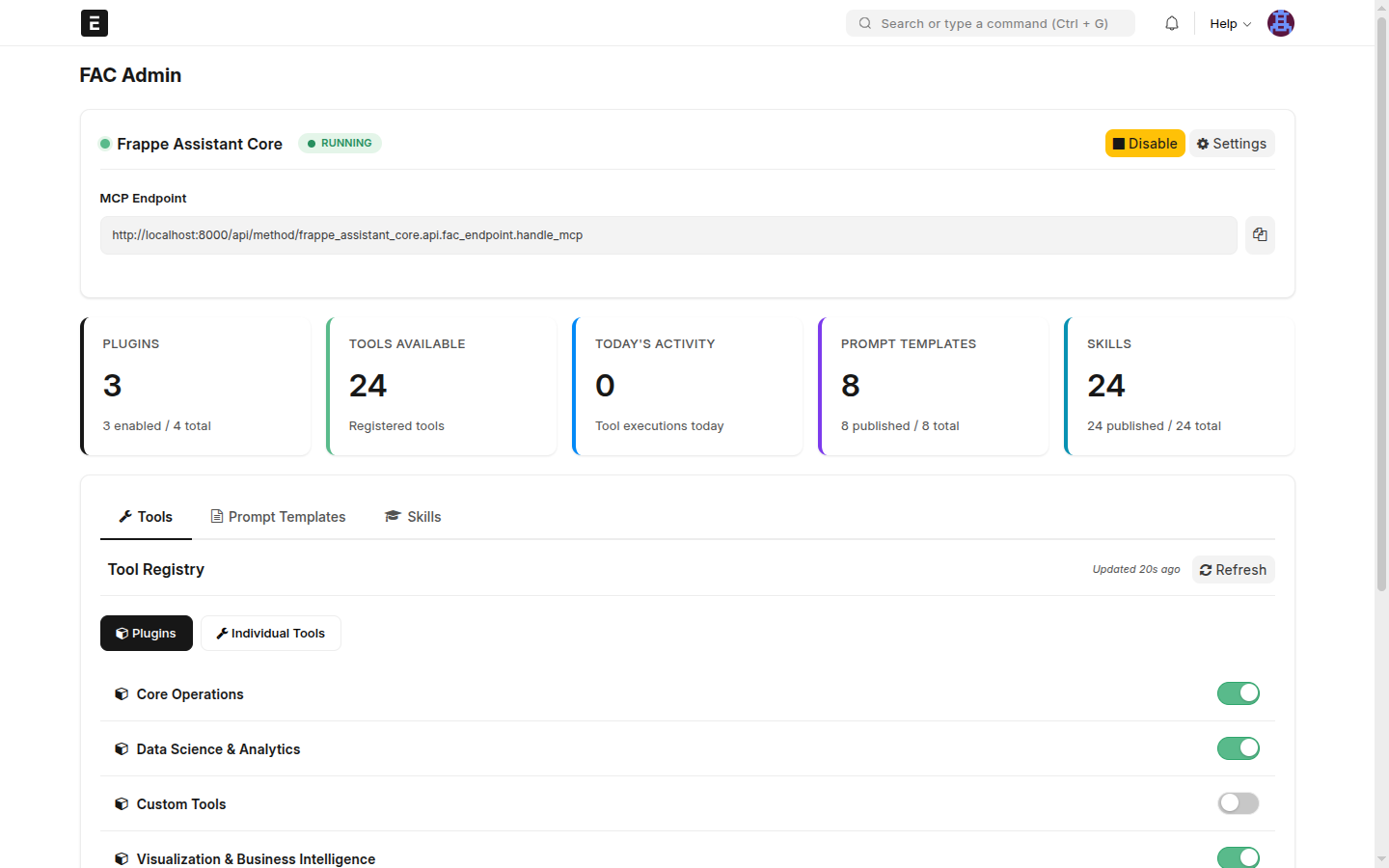
The page is laid out top to bottom:
1. Status bar
The top strip shows the FAC server state — Running or Stopped — with a button to toggle it. Disabling the server stops all MCP clients from reaching FAC until you re-enable it, so you're asked to confirm. The Settings button opens the full Assistant Core Settings for advanced options.
2. MCP endpoint
Your server's MCP URL, with a copy button:
https://your-site/api/method/frappe_assistant_core.api.fac_endpoint.handle_mcpThis is the URL you paste into an MCP client (Claude Desktop, the FAC Chat connector, etc.). See Quick Start and OAuth Setup for wiring up a client.
3. Stat cards
Five at-a-glance counters:
| Card | Shows |
|---|---|
| Plugins | Enabled vs total plugins |
| Tools Available | Registered tools exposed to clients |
| Today's Activity | Tool executions so far today |
| Prompt Templates | Published vs total templates |
| Skills | Published vs total skills |
4. Tabs
The working area has three tabs — Tools, Prompt Templates, and Skills — described below.
5. Recent Activity
A live feed of the last few tool calls (action, tool, user, status, time), with View full log linking to the Assistant Audit Log. Every tool execution is journaled here, which is your record of what the assistant did and for whom.
The three tabs
🔧 Tools
Controls which tools the MCP server exposes and who can use them. It has two views:
- Plugins — a simple on/off switch per plugin (turning one off hides all of its tools).
- Individual Tools — per-tool enable/disable, category badges, bulk actions, and role-based access (restrict a tool to specific roles).
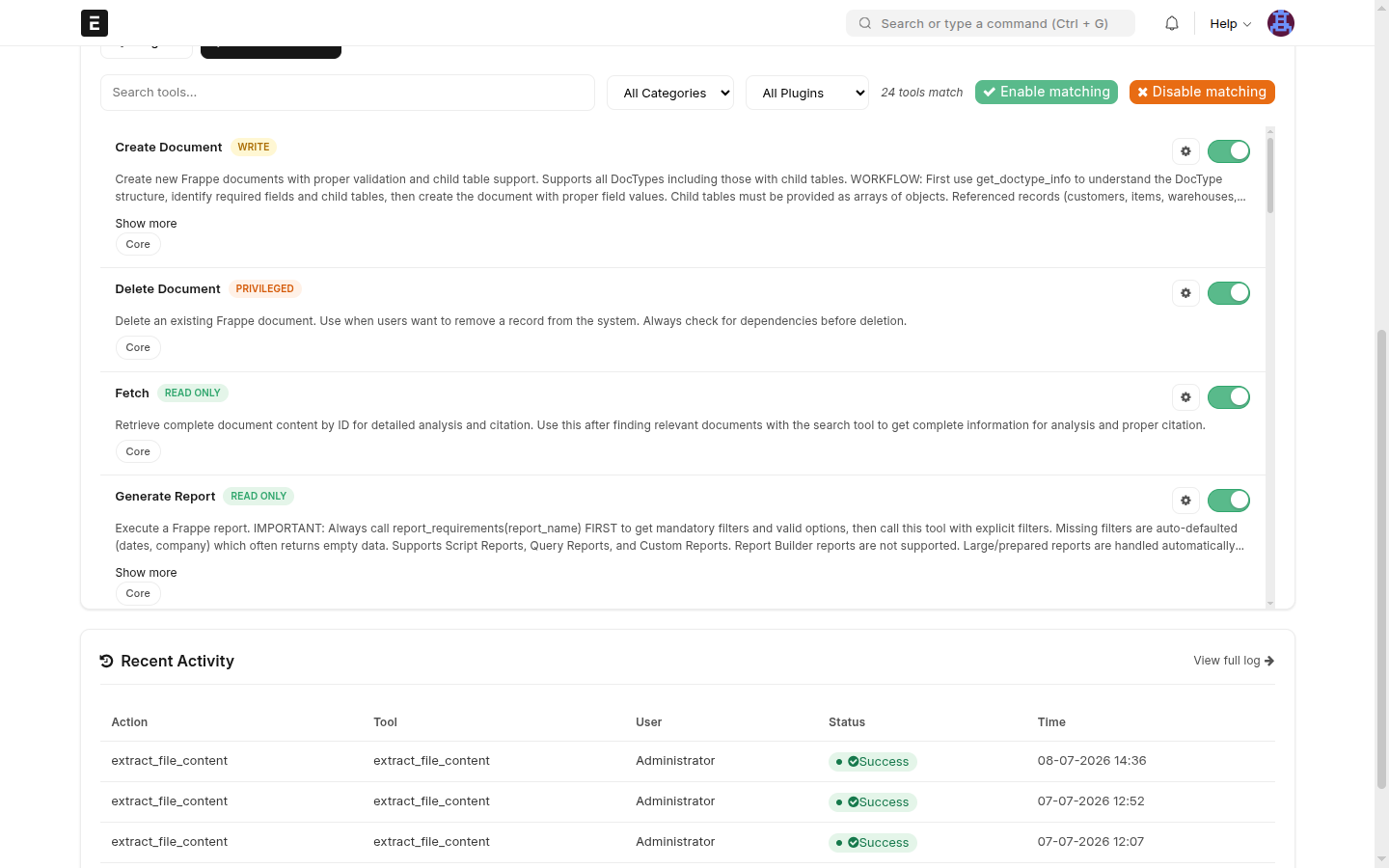
➡️ Full walkthrough, including restricting a tool to a role and least-privilege setups: Tool Management. Plugin-level control: Plugin Management.
📄 Prompt Templates
Manage reusable, parameterized prompts that clients can pull via MCP. Each card shows the template's name and slug, category, visibility, publish state (toggle), and usage count. Search and filter by status.
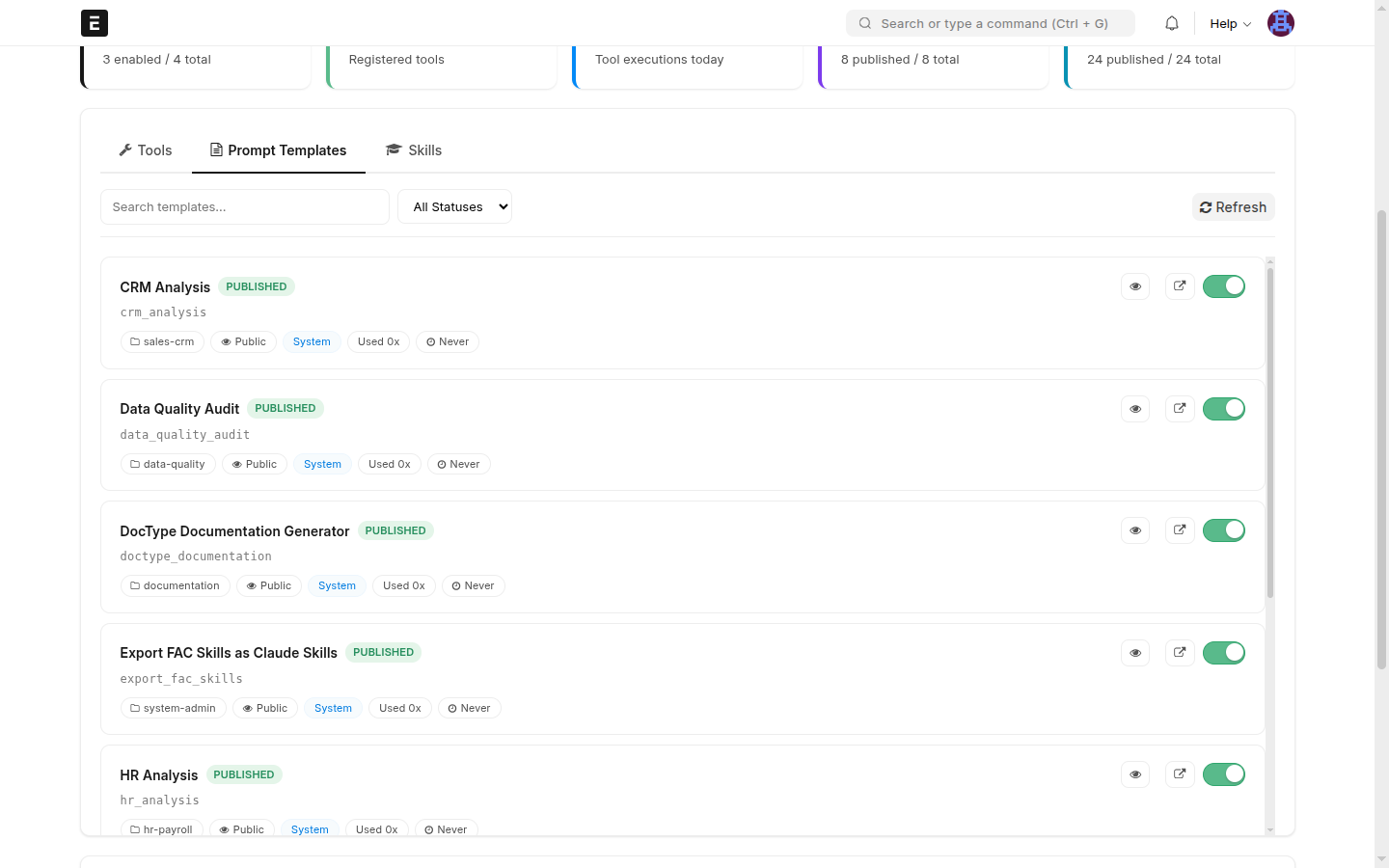
➡️ Creating templates, arguments, and rendering engines: Prompt Templates.
🎓 Skills
Manage skills — structured guidance that teaches the assistant how to use a tool or carry out a workflow. Cards show the skill name and slug, its type (Tool Usage / Workflow), the tool it's linked to, visibility, publish toggle, and usage. Search and filter by type or status.
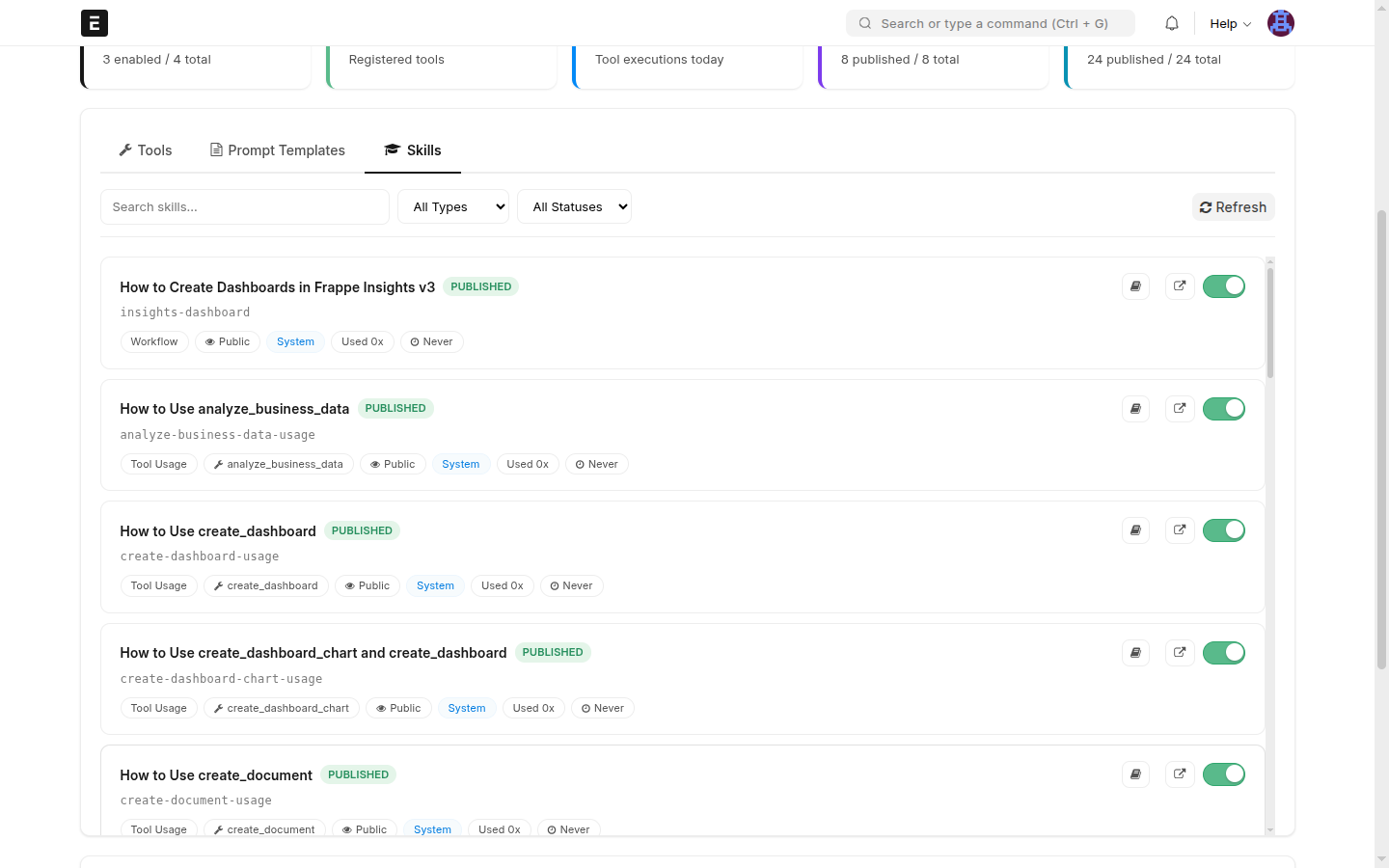
➡️ Authoring, visibility, and publishing: Skills.
Where to go next
| I want to… | Go to |
|---|---|
| Connect an MCP client | Quick Start · OAuth Setup |
| Turn whole capabilities on/off | Plugin Management |
| Enable a tool or restrict it to a role | Tool Management |
| Add a reusable prompt | Prompt Templates |
| Teach the assistant a workflow | Skills |
| Review what the assistant did | API Reference → Audit Log |